




Warning! The content within this article is over 36 months old and, therefore, may be out of date.
HOWTO: Deploy the Identity Appliance for vRealize Automation 6.x
Share this article on:



VMware vRealize Automation VCAP6 VCAP6-CMA
Published on 10 January 2017 by Christopher Lewis. Words: 253. Reading Time: 2 mins.
Introduction
This post is a part of a series of posts for preparation for the VCAP6-CMA Deploy exam. For the full exam prep resources check here .
Step by Step Instructions
- Within the VMware vSphere Web Client, right click and select Deploy OVF Template.
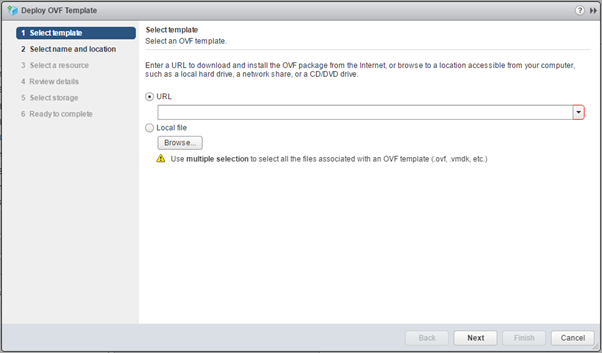
- Click Browse, navigate to the location of the Identity Appliance OVA, select it and then click Open.
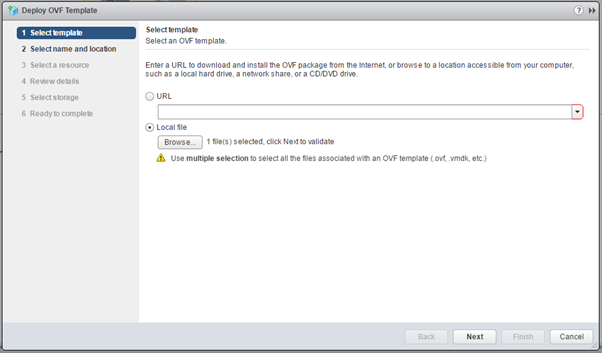
- Click Next.
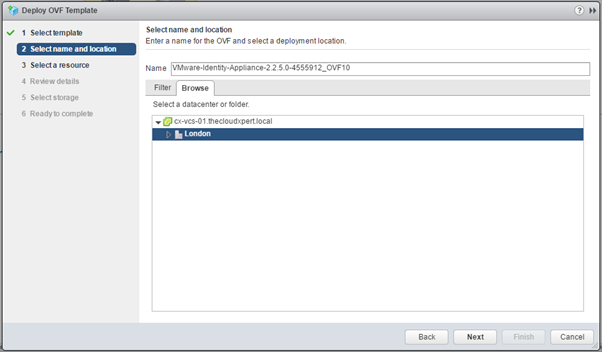
- Enter the Identity Appliance name into the the Name text field and then select the Datacentre or folder location to deploy the Identity Appliance.
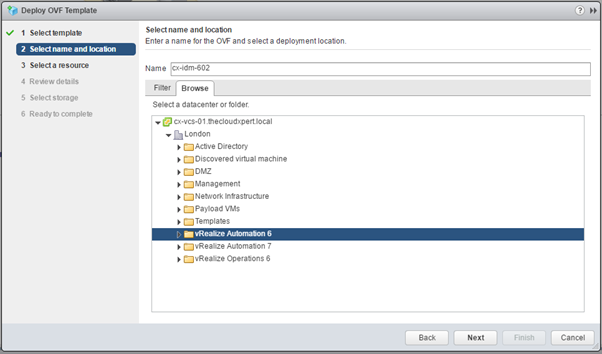
- Click Next
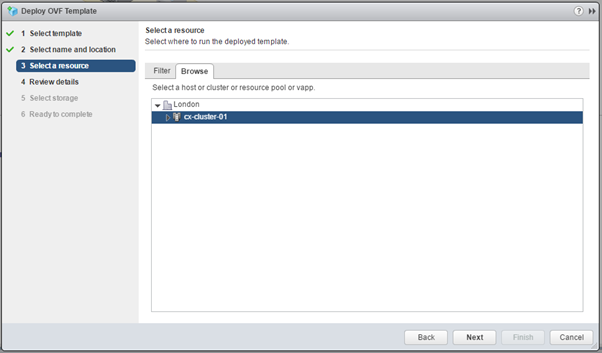
- Select the appropriate cluster, host or resource pool and then click Next.
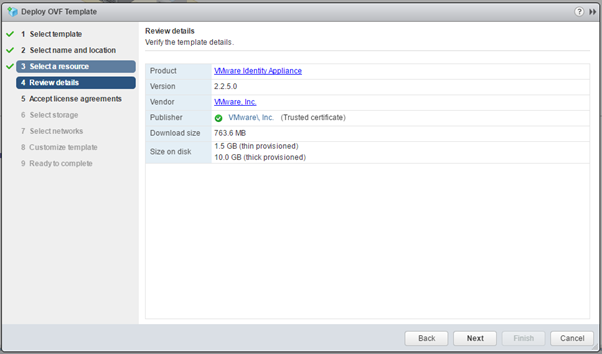
- Click Next.
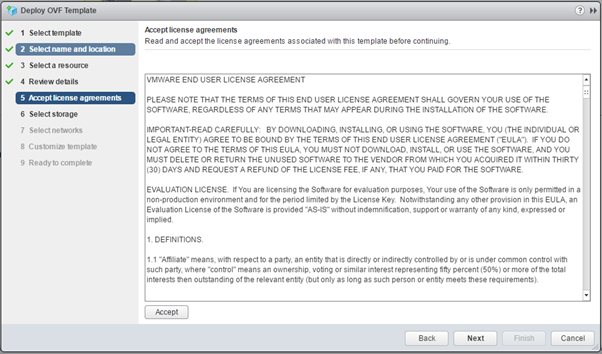
- Click Accept and then click Next.
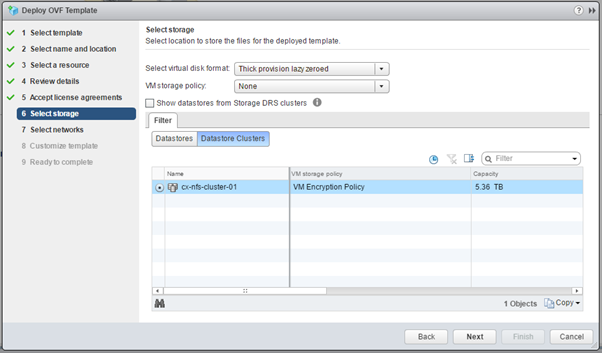
- Select the appropriate storage location and then click Next.
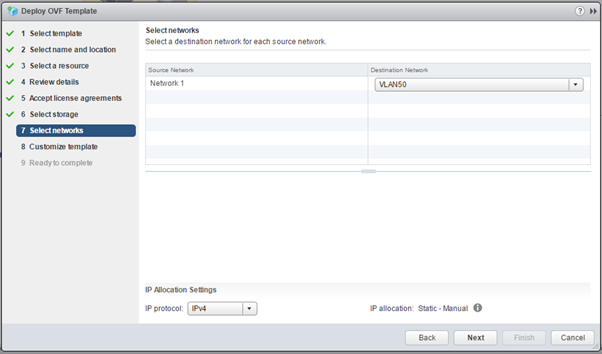
- Choose the correct Port Group from the Destination Network dropdown and click Next.
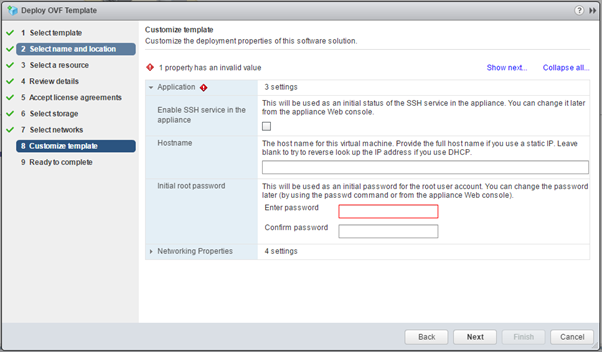
- Check the Enable SSH service in the appliance checkbox (this can be disabled later), enter the FQDN of the Identity Appliance into the Hostname text field and enter (then confirm) the root password in the Enter password and Confirm password text fields.
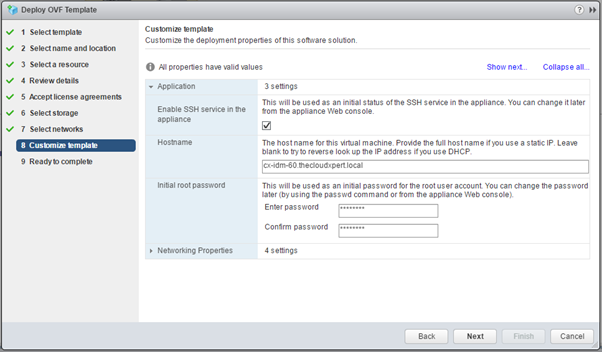
- Click on Networking Properties to expand the options and scroll down to expose the new fields to complete.
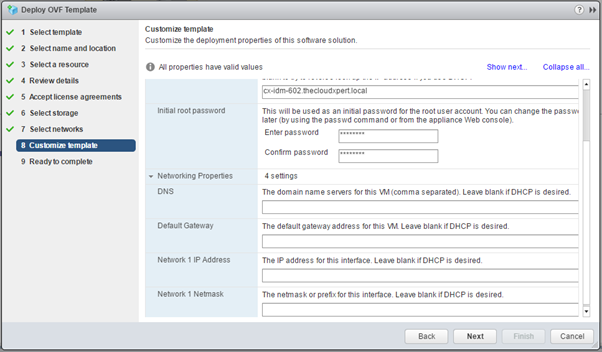
- Enter the IP Address(es) of the DNS Server(s) into the DNS Text field, enter the gateway address into the Default Gateway field, enter the Appliance IP Address into the Network 1 IP Address text field and finally add the Netmask into the Network 1 Netmask text field.
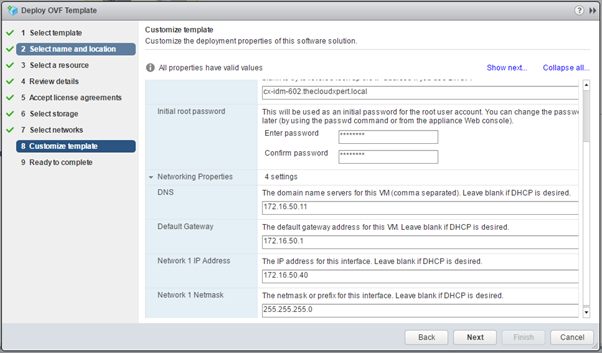
- Click Next.
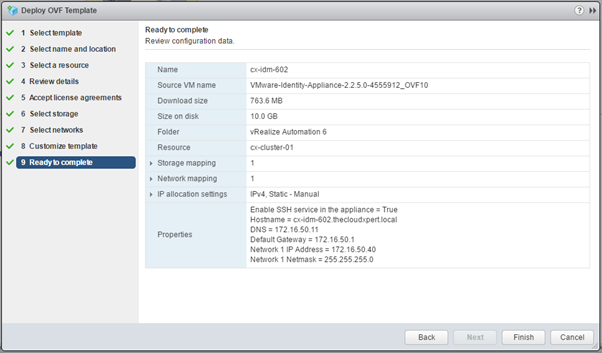
- Review the configuration information and then Click Finish to deploy the Identity Appliance.
Published on 10 January 2017 by Christopher Lewis. Words: 253. Reading Time: 2 mins.
Share this article on:
Related Post(s):
- HOWTO: Configure the VMware Identity Appliance for vRealize Automation 6.x ()
- HOWTO: Deploy the VMware vRealize Automation 6.x Appliance (OVA) ()
- VCAP6-CMA Deploy - Objective 3.2: Deploy and Manage Certificates and Access Control ()
- Achievement Unlocked: VMware Certified Implementation Expert 6: Data Center Virtualization ()
- Achievement Unlocked: VMware Certified Advanced Professional 6 - Data Center Virtualization Design ()
About the Author:

Name: Christopher Lewis
Twitter/X: thecloudxpert
Role: Domain Expert - VCF Automation & VCF Operations
Company: Broadcom
Recent Posts by Christopher Lewis:
Blog Categories:
vmware260
certification91
vrealize automation80
vcap48
nsx45
nsx v41
vmworld36
vrealize suite lifecycle manager20
vrealize suite14
vrealize orchestrator13
aria automation9
general9
vexpert9
vmware aria automation9
vsphere9
powercli8
microsoft7
active directory6
powershell6
windows6
certificate authority5
certificates5
vcf5
vmug5
vmware aria operations5
vrealize operations manager5
vsan5
vcenter4
vmware cloud3
aria operations2
aws2
home lab2
vcap62
vcix2
vmware explore2
vmware identity manager2
vrealize business2
Top Tags:
vmware 99+
vrealize automation 74
vcap6 cma 48
vcap6 45
nsx v 43
vcap6 nv 37
vcix6 nv 36
vmworld 35
howto 33
barcelona 24
vrealize orchestrator 21
vrslcm 20
vexpert 19
api 18
vmworld 2016 13
vra 13
certificates 12
vmware aria 12
vsphere 12
vrealize suite lifecycle manager 11
multi tenancy 9
vcap 9
vmware aria automation 9
vmworld 2017 9
platform services controller 8
powercli 8
vmug 8
vrealize operations 8
certification 7
microsoft 7
powershell 7
vsan 7
active directory 6
psc 6